Record of Absence
In the Role Center, under the Work evidence section, the total number of vacation days is defined, and absences are recorded for each employee.

Each category is mapped to one of the work categories in the Payroll Calculation to facilitate the import of work hours. New - create a new category.

All criteria prescribed by the Employment Regulations or Collective Agreement, based on which employee labor days are allocated within a company, are defined. Enter Work Settings into the search.
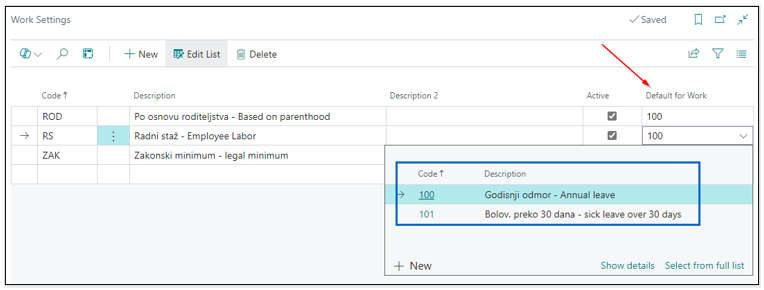
Work Evidence List

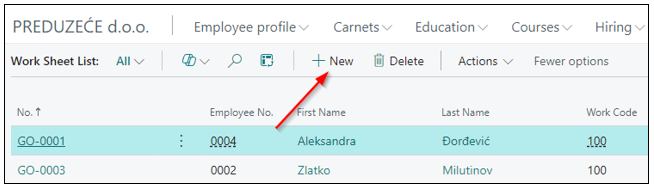
By clicking on the Work Evidence List and the New icon, a form for filling out the absence opens up.
The form requires filling out the following fields:
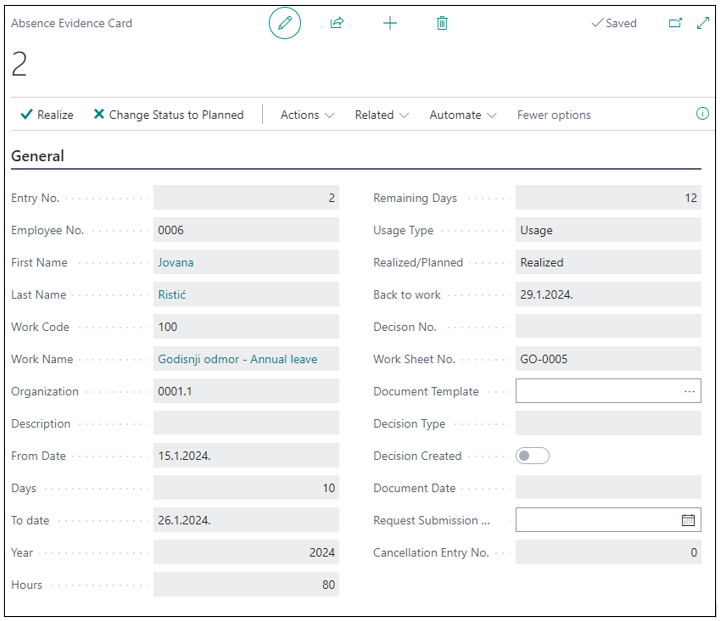
- Employee No: Enter the employee code for whom the leave is being created.
- First Name: Automatically populated by selecting the employee code.
- Last Name: Automatically populated by selecting the employee code.
- Work Code: Select from the dropdown menu for the type of leave (annual leave, paid leave, sick leave up to 30 days).
- From Date: Enter the start date of the leave.
- Days: Enter the number of days of leave.
- Year: Automatically filled by the system.
- Hours and Days: Fields are automatically populated based on the start and end dates.
- Decison No: Enter the resolution number.
- Decision Type: Select the type of document (Annual Leave Resolution, Paid Leave Resolution).
The default status of the record is Planned. Once the fields are filled, the leave needs to be marked as Realized by clicking the Realize function (the status does not change manually).
Need more help?