Elektronski platni promet NPS
Podesi bankovne račune
Podešavanje bankovnih računa:
-
Prvo se kreiraju brojčane serije putem brze pretrage i unesite Brojčane serije, na listi Brojčane serije klikom na akciju Novo kreira se nova braojcana serija, što omogućava da svaka banka ima svoj jedinstveni broj (npr. B001, B002, B003…).
-
Nakon kreirane brojcane serije u pretrazu unesite Platni promet i računi u banci, na stranici Platni promet i računi u banci kliknite na akciju Novo i otvara se praznu Kartica računa u banci za unos podataka.
-
Obavezna polja na Kartica računa u banci su: Br., Ime, Grupa knjiženja, Valuta (samo ako nije RSD račun) i Br. računa u banci.
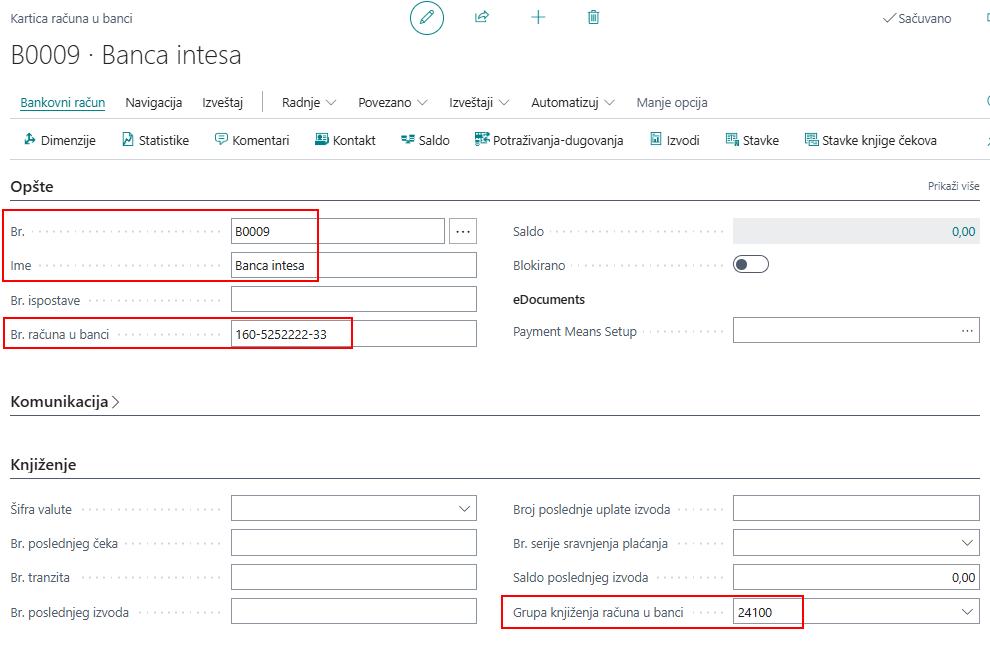
- Neophodno je kreirati za svaku banku Obrasci naloga knjiženja.
Obrasci naloga knjiženja za platni promet
Za svaku kreiranu banku potrebno je kreirati poseban obrazac knjiženja. Da bi se omogućila integracija sa aplikacijama za elektronski platni promet, neophodno je podesiti parametre vezane za obrasce naloga knjiženja.
U pretragu Business Central-a unesite Obrasci naloga knjiženja – otvara se prozor za unos sledećih podataka:
-
Ime - kratko ime ili šifra banke
-
Opis - Kratak opis naloga knjiženja
-
Vrsta – bira se Elektronsko plaćanje
-
Vrsta protivkonta – bira se Bankovni račun
-
Broj protivkonta - bira se bankovni račun koji ste kreirali
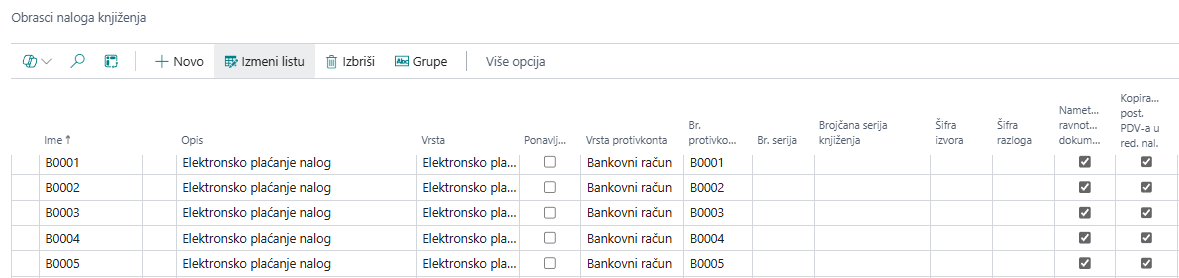
Obavezno označiti polja za red koji se popunjava na stranici :
-
Nametanje ravnoteže dokumenata - Određuje da li proknjižene transakcije u nalogu knjiženja treba da budu izbalansirane po broju i vrsti dokumenta, pored balansiranja po datumu dokumenta, kako bi se osigurala potpuna usklađenost knjiženja.
-
Kopiranje PDV-a u red naloga - Određuje da li treba da se izvrši obračun PDV-a i balansiranje konta u redu naloga.
Grupe naloga knjiženja za platni promet
Kada se nalog podesi, potrebno je uneti brojeve XML datoteka za uvoz i izvoz podataka za aplikacije elektronskog platnog prometa (Office Banking i Halcom). To se podešava na stranici Obrasci naloga knjiženja, klikom na akciju Grupe.
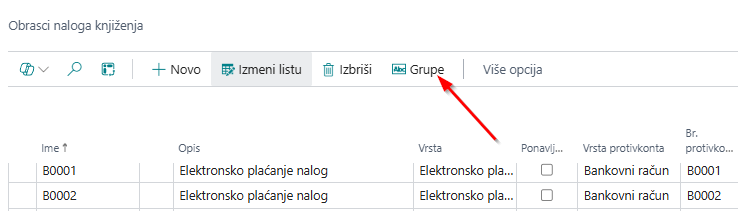
Gde se otvara nova stranica za unos:
-
Ime - određuje ime naloga.
-
Opis - navedite kratak opis grupe naloga.
-
Vrsta Protivkonta - bira se Bankovni račun.
-
Broj protivkonta - bira se banka.
-
Broj serije - navedite brojčanu seriju iz kojih ce se kreirati brojevi naloga koji se knjiže.
-
ID xmlporta za izvoz - određuje ID XMLPort-a koji će se koristiti za izvoz redova naloga u format prilagođen izabranom klijentu banke.
-
ID xmlporta za uvoz - određuje ID XMLPort-a koji će se koristiti za uvoz izvoda u redove naloga el. platnog prometa u formatu prilagođenom izabranom klijentu banke.

Za Halcom:
-
ID xmlporta za izvoz - 49021177
-
ID xmlporta za uvoz - 49021178
Za Office Banking:
-
ID xmlporta za izvoz - 49021175
-
ID xmlporta za uvoz - 49021176
Poziv na broj – podeš. prodaje i potraživanja
U okviru Prodaje i potraživanja potrebno je definisati polje Podrazumevana šifra formule poziva na broj odobrenja.
Nakon što se ovo polje definiše, na prodajnom računu će se automatski kreirati poziv na broj odobrenja. Na taj način kupac na računu dobija poziv na broj, na osnovu kojeg sistem prepoznaje uplatu i povezuje je sa fakturom koju je kupac platio.
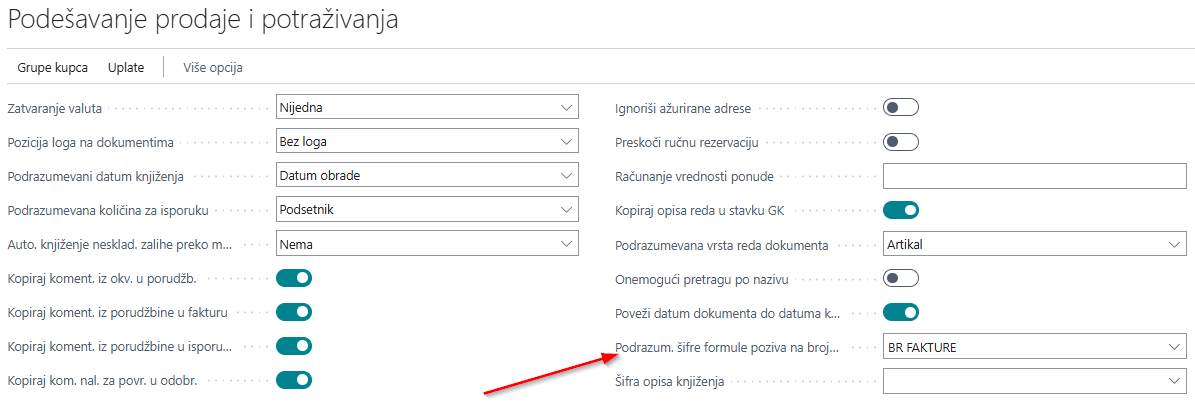
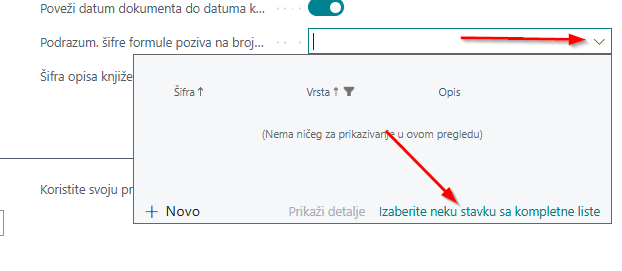
Kada se nalazimo na stranici Podešavanje prodaje i potraživanja i želimo da definišemo podrazumevanu šifru formule poziva na broj odobrenja, klikom na strelicu nadole otvara se lista za dalje definisanje.
Nakon toga bira se opcija Izaberte neku stavku sa kompletne liste, kao na slici.
Kliknite na Novo, potrebno je dodeliti šifru, opis i formulu (u našem primeru naziv je broj fakture).
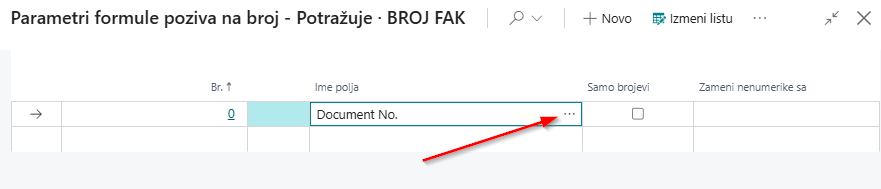
Formula se definiše klikom na tri tačke, a zatim izborom opcije Novo, otovrice se novi prozor za dalji unos.

Prema našem podešavanju, poziv na broj predstavlja broj fakture, tako da kupac u polje poziva na broj upisuje broj fakture.
Na ovaj način, prilikom uvoza TXT datoteke i knjiženja izvoda, sistem prepoznaje pozive na broj i automatski povezuje stavke kupca sa odgovarajućim fakturama.
Cela funkcionalnost omogućava da se, nakon podešavanja i knjiženja prodajnog računa, na prodajnoj fakturi u tabu Detalji fakture automatski popuni polje Šifra formule poziva na broj odobrenja.
Prema našem primeru, to je broj fakture. Podešavanje može biti i kompleksnije, pa je moguće definisati da poziv na broj sadrži i model poziva na broj odobrenja (97).
Referenca plaćanja
Referenca za plaćanje je polje koje se ne popunjava automatski iz podešavanja, već se unosi ručno. Ono omogućava da promenite poziv na broj i model poziva na broj koji su definisani u polju Podrazumevana šifra formule poziva na broj odobrenja u Podešavanju prodaje i potraživanja.
Polje Referenca za plaćanje omogućava unos više od 23 karaktera, dok poziv na broj može sadržati najviše 22 karaktera. Ukoliko imate potrebu za većim brojem karaktera, podatak možete uneti u referencu za plaćanje.
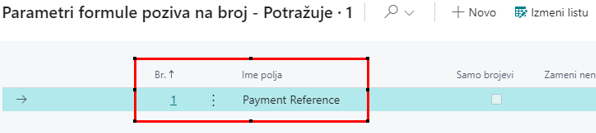
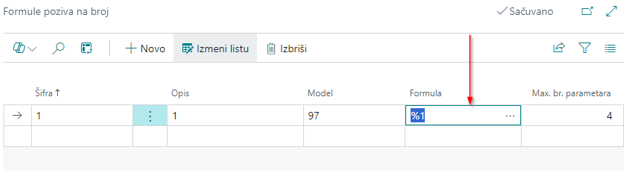
Da bi se model prikazao u referenci, potrebno ga je uneti u model sa 97, nakon čega se unosi željeni podatak.
!
Podatak iz reference za plaćanje prenosi se na stavke knjige dobavljača, odakle se dalje prenosi u predlog uplata dobavljačima prilikom pokretanja predloga. Takođe, podatak unet u referencu za plaćanje prenosi se kroz nalog plaćanja (TXT datoteku) u sisteme za plaćanje kao što su Halcom, Office Banking ili Tezor.
Platni promet i računi u banci
U pretragu Business Central-a unesite Platni promet i računi u banci. Otvoriće se lista banaka koje ste prethodno kreirali. Na stranici su dostupne akcije: Priprema, Potvrda, Nalog i Izvod.
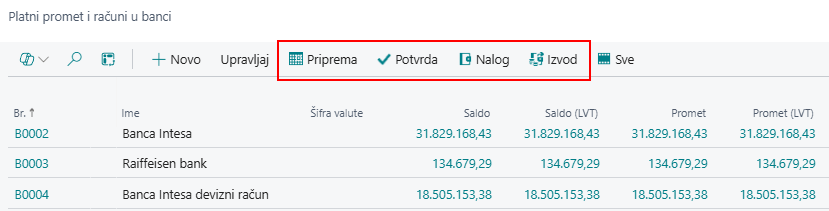
Ove akcije koriste se za proces kreiranja plaćanja i knjiženja bankarskih izvoda.
-
U okviru akcije Priprema vrši se priprema naloga za plaćanje.
-
Kada se potvrde redovi u Pripremi (akcija Potvrda), nalog prelazi u status Potvrda i prelazi u akciju Potvrda odakle se kreira datoteka za izvoz, koja se uvozi u aplikaciju za elektronsko plaćanje (Halcom ili Office Banking).
-
Izvezeni nalozi ce promeniti status u Nalog i nalazice se u akciji Nalog i ostaju tamo sve do obrade izvoda.
-
Akcija Izvod koristi se za uvoz bankarskog izvoda.
Nakon uvoza izvoda u akciji Izvod, po kojem je izvršeno plaćanje, redovi koji su bili prikazani u akciji Nalog automatski se prenose na Izvod i više se ne prikazuju u Nalozima.
Na ovaj način se jasno prati realizacija plaćanja – svi redovi plaćanja koji nisu plaćeni ostaju vidljivi u akciji Nalog.
Akcija Predloži uplate dobavljačima
Predlog plaćanja se koristi za pregled dospelih obaveza prema dobavljačima i predstavlja osnovu za automatsko kreiranje naloga za plaćanje iz Business Central-a.
Da biste pristupili funkcionalnosti Predloži uplate dobavljačima, u pretragu Business Central-a unesite Platni promet i računi u banci. Otvoriće se stranica sa kreiranim bankama. Na stranici Platni promet i računi u banci označite banku sa koje želite da izvršite plaćanja, a zatim pokrenite akciju Priprema na stranici Platni promet i računi u banci.
Otvoriće se Nalog elektronskog platnog prometa. Na tom nalogu ponovo izaberite akciju Priprema, a zatim akciju Predloži uplate dobavljačima.
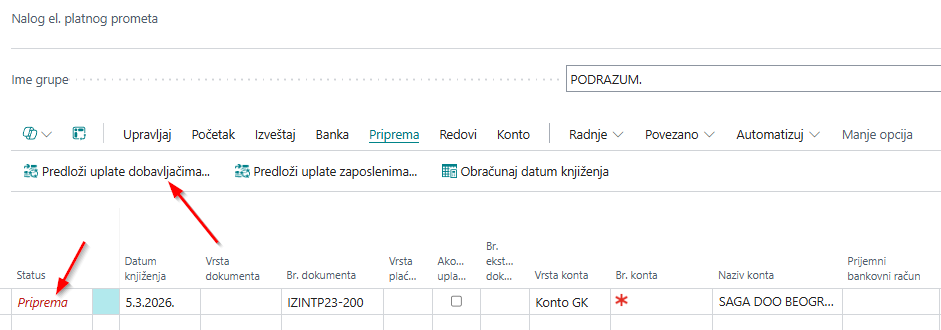
Otvoriće se stranica za unos podataka, na kojoj je potrebno popuniti sledeća polja:
-
Datum dospeća fakture – Unosi se datum dospeća stavki dobavljača koje će biti uključene u obradu.
-
Koristi prioritet dobavljača – Ako su raspoloživa novčana sredstva ograničena, moguće je uneti Raspoloživi iznos (LVT) i označiti opciju Upotreba prioriteta dobavljača. Sistem će tada dodavati redove u nalog prema prioritetu dobavljača, sve dok se ne dostigne definisani limit. Dobavljači sa istim prioritetom biće poređani po abecednom redu.
3.Saberi po dobavljaču – Označite ovu opciju ukoliko želite da se ukupan iznos svih otvorenih faktura po dobavljaču prikaže u jednom redu.
-
Datum knjiženja – Unosi se datum knjiženja naloga.
-
Br. početnog dokumenta – Ukoliko nije definisana brojčana serija, broj dokumenta je potrebno uneti ručno.
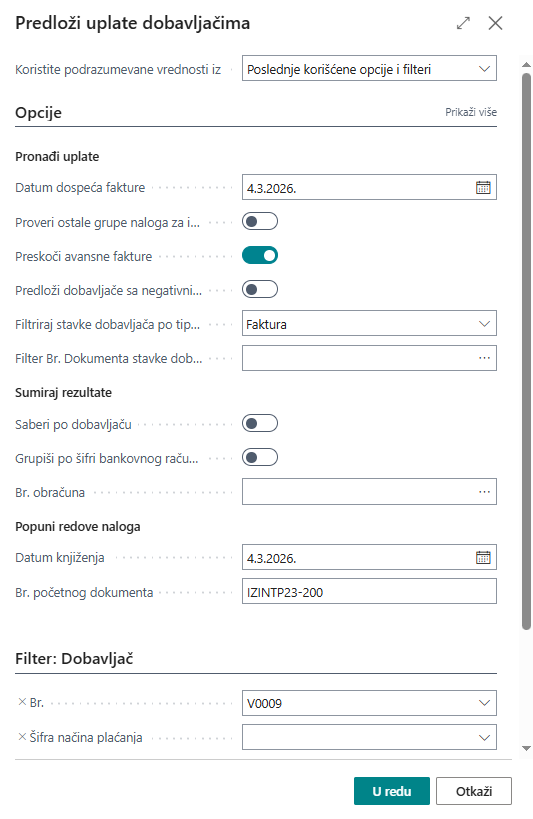
Nakon popunjavanja polja, klikom na opciju U redu pokreće se obrada. Sistem automatski popunjava nalog sa redovima koji predstavljaju predloge za plaćanje. Fakture koje su predložene za plaćanje automatski se prikazuju u polju Broj dokumenta za zatvaranje.
Kada se kreiraju redovi na nalogu elektronskog plaćanja, oni imaju status Priprema. Dok su u tom statusu, moguće je vršiti izmene u redovima, na primer promeniti iznos nekog reda, ako zelite da samnjite iznos uplate prema dobavljaču.
Potvrda naloga za plaćanje vrši se na Nalogu elektronskog plaćanja putem opcije Povezano → Plaćanje → Potvrda, čime se status menja na svim redovima i svi redovi prelaze u akciju Potvrda.
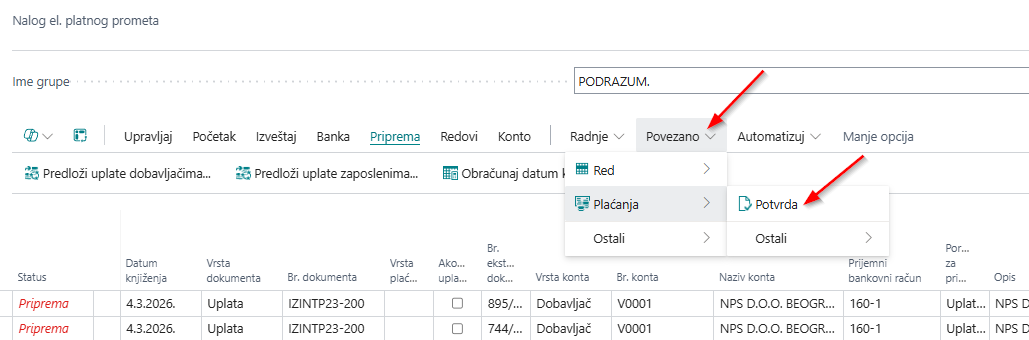
Pokretanjem akcije Potvrda na stranici Platni promet i računi u banci, dobicemo naloge koji su kreirani i spreni da izvoz. Izvoz se radi sa Nalogu elektronskog plaćanja pokretanjem akcije Povezano → Plaćanje → E-Plaćanje izvoz. Tada ce se generisati datoteka za dalji uvoz u aplikaciju placanja (Halcom ili Office Banking)
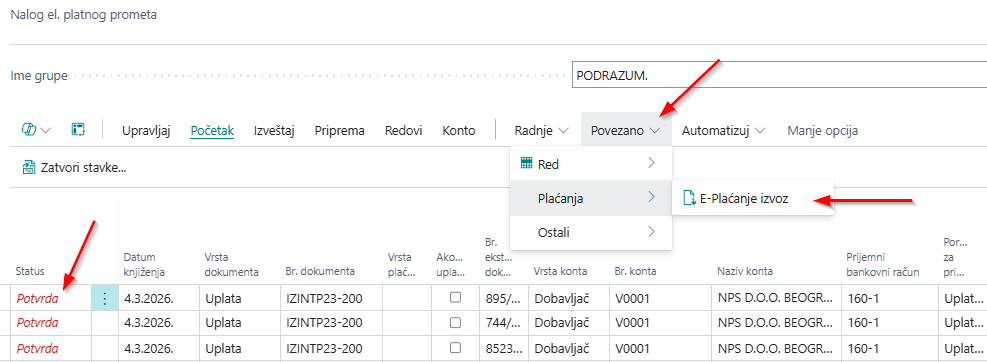
Nalog predstavlja sigurnosni korak jer, ukoliko ponovo pokrenemo funkciju Predloži uplate dobavljačima/zaposlenima, novi predlozi neće sadržati uplate koje se već nalaze u opciji Nalog. Na taj način se sprečava ponavljanje uplata ka dobavljačima i zaposlenima.
U ovom statusu nalozi ostaju sve do izvršenja uvoza izvoda.
Akcija Predloži uplate zaposlenima
Predlog plaćanja zaposlenima se koristi za pregled dospelih obaveza prema zaposlenima i predstavlja osnovu za automatsko kreiranje naloga za plaćanje iz Business Central-a.
Da biste pristupili funkcionalnosti Predloži uplate zaposlenima, u pretragu Business Central-a unesite Platni promet i računi u banci. Otvoriće se stranica sa kreiranim bankama. Na stranici Platni promet i računi u banci označite banku sa koje želite da izvršite plaćanja, a zatim pokrenite akciju Priprema na stranici Platni promet i računi u banci.
Otvoriće se Nalog elektronskog platnog prometa. Na tom nalogu ponovo izaberite akciju Priprema, a zatim akciju Predloži uplate zaposlenima.
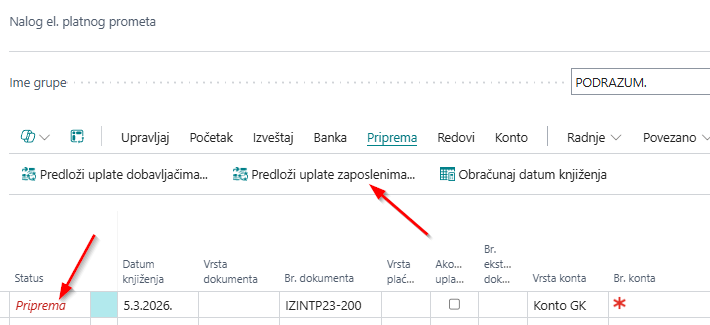
Otvoriće se stranica za unos podataka, na kojoj je potrebno popuniti sledeća polja:
-
Saberi po zaposlenom - Određuje da li želite da grupna obrada napravi jedan red po zaposlenom.
-
Datum knjiženja - Navodi datum za knjiženje.
-
Br. početnog dokumenta - Ovo je broj dokumenta koji se pojavljuje na redu naloga plaćanja.
-
Na tabu zaposleni može se uneti broj zaposlenog ukoliko želimo da kreiramo predlog plaćanja samo za konkretnog zaposlenog.
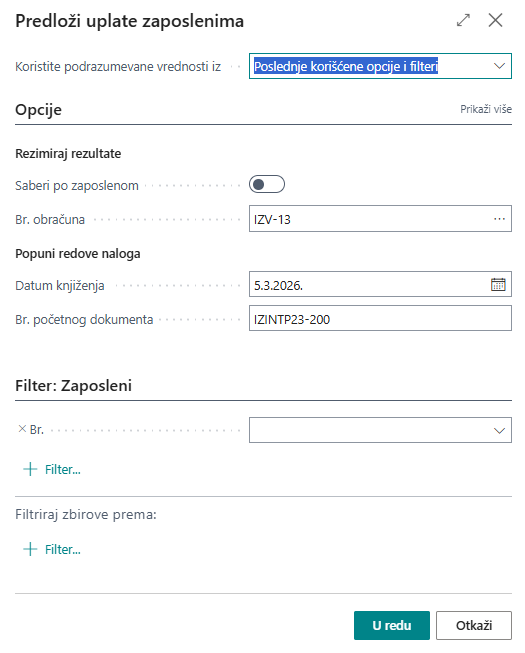
Nakon popunjavanja polja, klikom na opciju U redu pokreće se obrada. Sistem automatski popunjava nalog redovima koji predstavljaju predloge za plaćanje. Fakture koje su predložene za plaćanje automatski se prikazuju u polju Broj dokumenta za zatvaranje.
Kada se kreiraju redovi na nalogu elektronskog plaćanja, oni imaju status Priprema. Dok su u tom statusu, moguće je vršiti izmene u redovima, na primer promeniti iznos nekog reda, ako želite da smanjite iznos uplate prema zaposlenom.
Potvrda naloga za plaćanje vrši se na Nalogu elektronskog plaćanja putem opcije Povezano → Plaćanje → Potvrda, čime se status menja na svim redovima i svi redovi prelaze u status Potvrda.
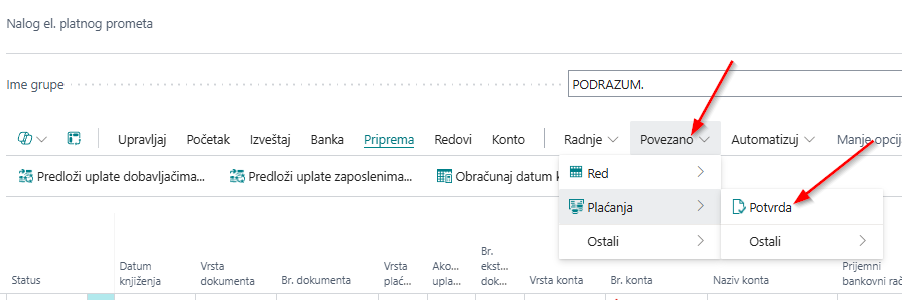
Pokretanjem akcije Potvrda na stranici Platni promet i računi u banci, dobićemo naloge koji su kreirani i spremni za izvoz. Izvoz se vrši na Nalogu elektronskog plaćanja pokretanjem akcije Povezano → Plaćanje → E-plaćanje izvoz. Tada će se generisati datoteka za dalji uvoz u aplikaciju za plaćanje (Halcom ili Office Banking).
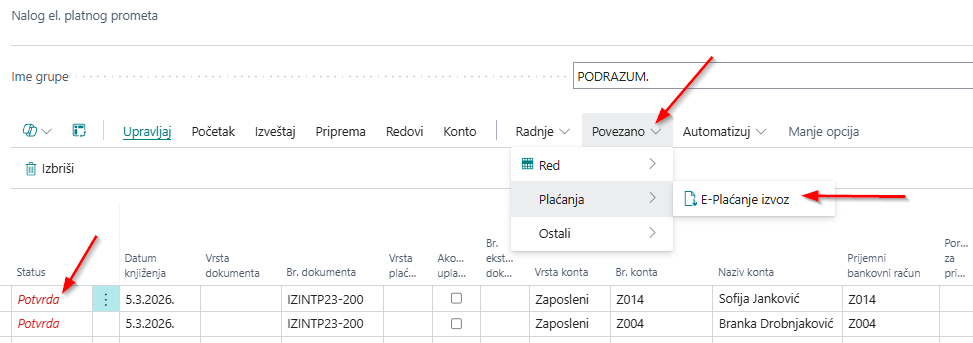
U ovom statusu nalozi ostaju sve do izvršenja uvoza izvoda.
Akcija Izvod
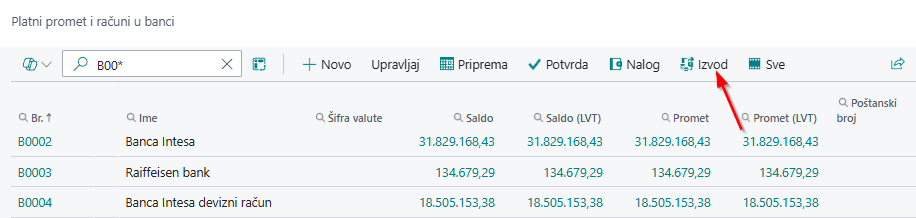
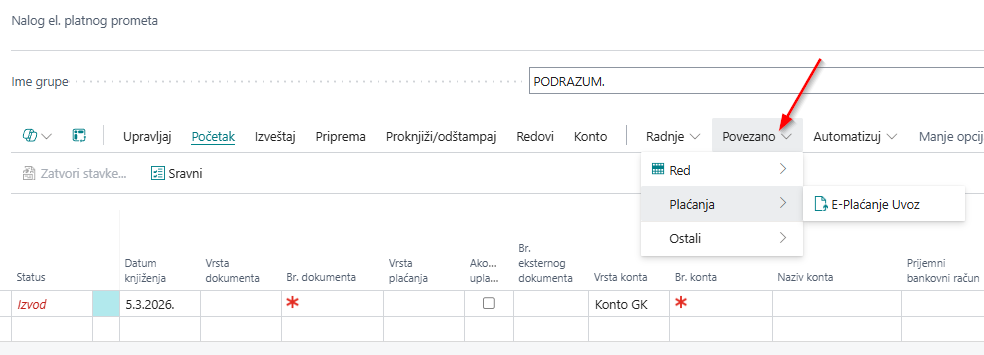
U pretragu unesete Platni promet i računi u banci, uvoz izvoda se radi sa odabrane banke, klikom na red željene banke pa izborom opcije Izvod. Kada pristupite nalogu potrebnoje da se uradi uvoz izvoda sa akdije Povezano → Plaćanje → E-placanja Uvoz. Nakon pokretanja ove funkcije pojavljuje se novi prozor u kome treba da se odabere putanja do .txt fajla sa izvodom, koji je snimljen iz aplikacije za elektronski platni promet. Po potvrdi uvoze se redovi izvoda banke.
Prilikom uvoza stavki, prepoznavanje kupaca, dobavljača se vrši prema bankovnim računima. Ukoliko ne bude pronađen bankovni račun iz fajla i ne prepozna se kupac/dobavljač, Business Central će prikazati upororenje.
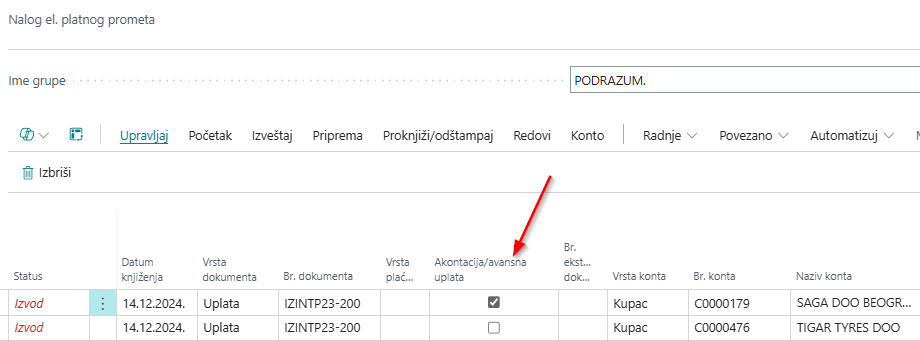
Ukoliko je potrebno da neka uplata bude proknjižena kao avansna uplata na redu naloga mora se čekirati polje Akontacija/Avansna uplata.
Akcija Izvod se pokrece na stranici Platni promet i računi u banci
Kada ste u Nalogu el. platnog prometa pokrecete akciu Povezano → Plaćanje → E-placanja Uvoz.
Otvoriće se novi prozor u kojem je potrebno odabrati datoteku za uvoz.

Tokom procesa uvoza, sistem pretražuje kupce/dobavljače prema broju bankovnog računa. Ako na kartici kupca/dobavljača nije unet bankovni račun, pojaviće se poruka o gresci.
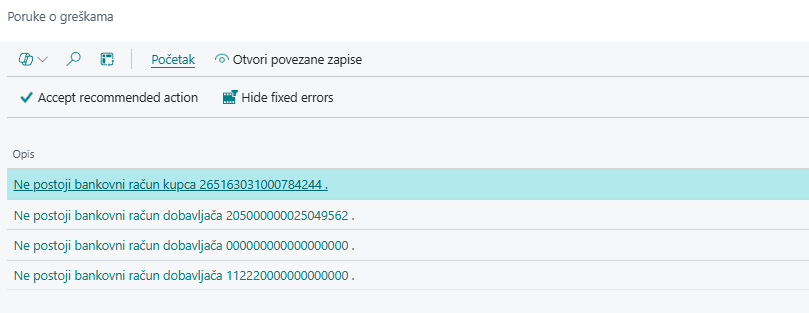
Iako neki kupci/dobavljači nisu pronađeni, sve transakcije će biti uvezene. U zavisnosti od strane (duguje/potražuje), sistem će odabrati tip konta (dobavljač ili kupac), dok će polje Broj konta ostati prazno za redove kod kojih kupac/dobavljač nije pronađen.
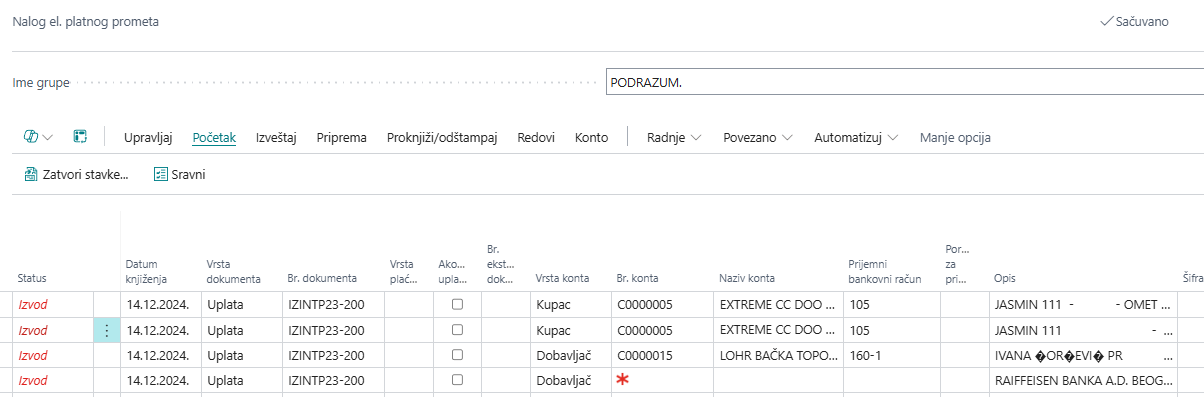
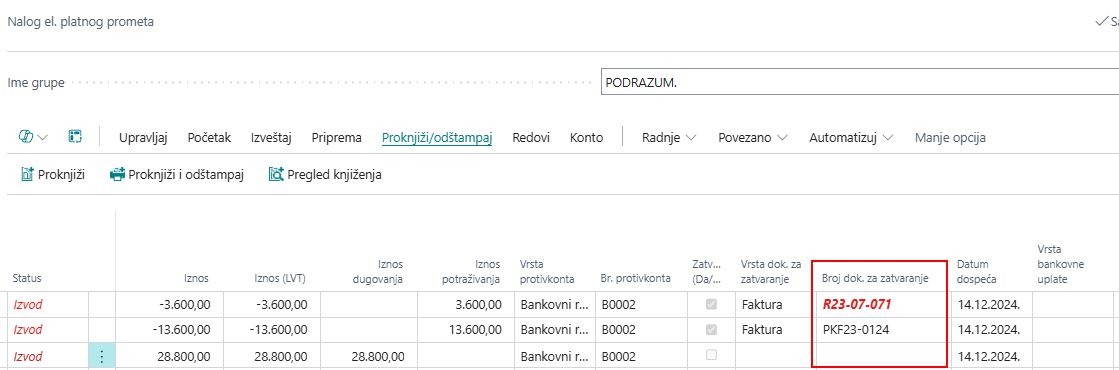
Stavke kupaca i dobavljača koje su pronađene prema pozivu na broj odobrenja biće automatski izabrane za zatvaranje u polju Broj dok. za zatvaranje
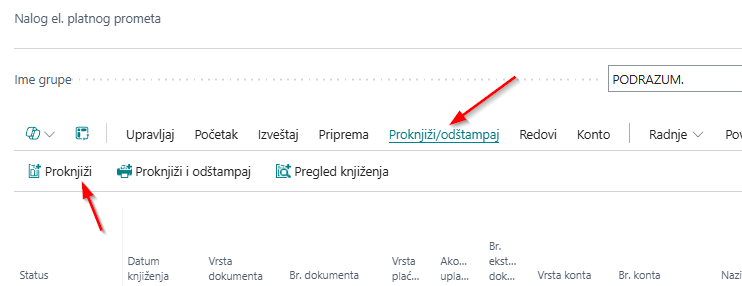
Akcija Proknjiži - izvod
Po završetku ažuriranja podataka na nalogu, knjiženje se može izvršiti na Nalogu el. platnog promenta na akcijom Proknjiži/odštampaj → Proknjiži.
Napomena: Prilikom uvoza izvoda, filteri koji vrše proveru pri prepoznavanju redova iz .txt datoteke su sledeći:
- Provera tekućeg računa – ukoliko je u pitanju dugovna strana, sistem prvo traži dobavljača. Ako dobavljač nije pronađen po tekućem računu, prelazi se na sledeću proveru.
- Provera poziva na broj – sistem vrši pretragu po stavkama dobavljača i po broju dobavljača, proverava da li je stavka otvorena u sistemu, kao i da li je iznos na dugovnoj strani. Ukoliko je stavka pronađena, unosi se u nalog za knjiženje izvoda sa svim podacima preuzetim sa stavke dobavljača.
- Ukoliko stavka dobavljača nije pronađena, sistem vrši pretragu po kontima glavne knjige, prema broju bankovnog računa koji je unet na kartici konta troška.
- Ukoliko ništa od navedenog nije pronađeno, sistem prelazi na pretragu kupca. Ako se pronađe kupac, menja se tip dokumenta u koloni naloga za knjiženje, odnosno prelazi sa uplate na refundaciju.
- Ukoliko sistem ne prepozna nijedan od navedenih podataka na dugovnoj strani izvoda, vrsta konta ostaje dobavljač, a iznos se preuzima iz .txt datoteke.
- Isti princip važi i za kupca.
Avansi na Izvodu
Ako želite da neku uplatu, bilo od kupca ili od dobavljača, označite kao avansnu uplatu, to se radi na izvodu, na redu za uplatu za koji želite da označite da je u pitanju avans, klikom na polje Akontacija/avansna uplata.
Ova akcija će promeniti grupu knjiženja za avans. Do promene dolazi zato što je u podešavanju grupe knjiženja kupca i dobavljača definisan poseban konto za avansne uplate.
Potrebna vam je pomoć?